
The Employee screen is where you store everything about a staff member — personal details, pay setup, skills, leave, loans, and tax information all in one place.
Where to find it: Setup > Employee > Employee, or HR > Setup > Employee, depending on your login permissions
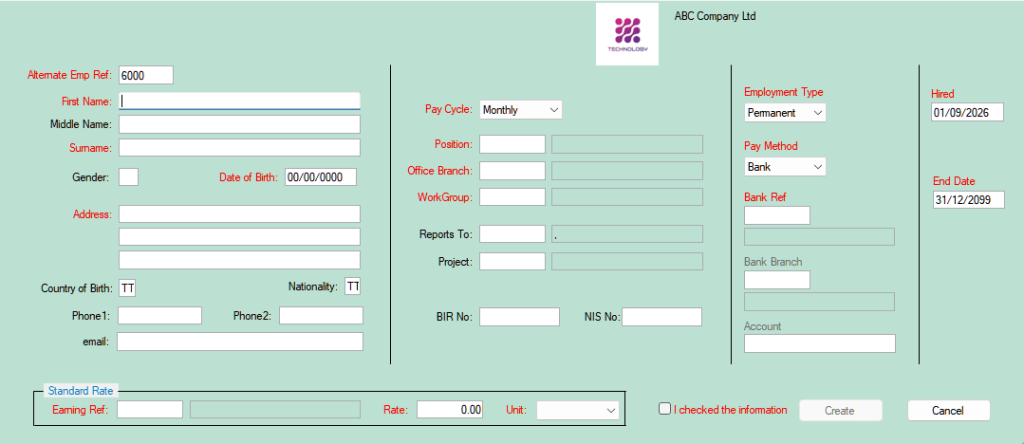
Steps
- Open the Employee screen — it comes up blank, ready for a new record.
- Type in a new Employee Code to start a new employee, or press the plus sign (+) if you have auto-numbering on.
- When prompted, confirm that you want to create a new employee by selecting Yes.
- Enter the employee’s details in the fields. All fields in red must be entered.
When an employee leaves the company, don’t delete their record — change the Employment Status to Terminated instead. All of their historic pay information stays available and accessible even after they’ve left.